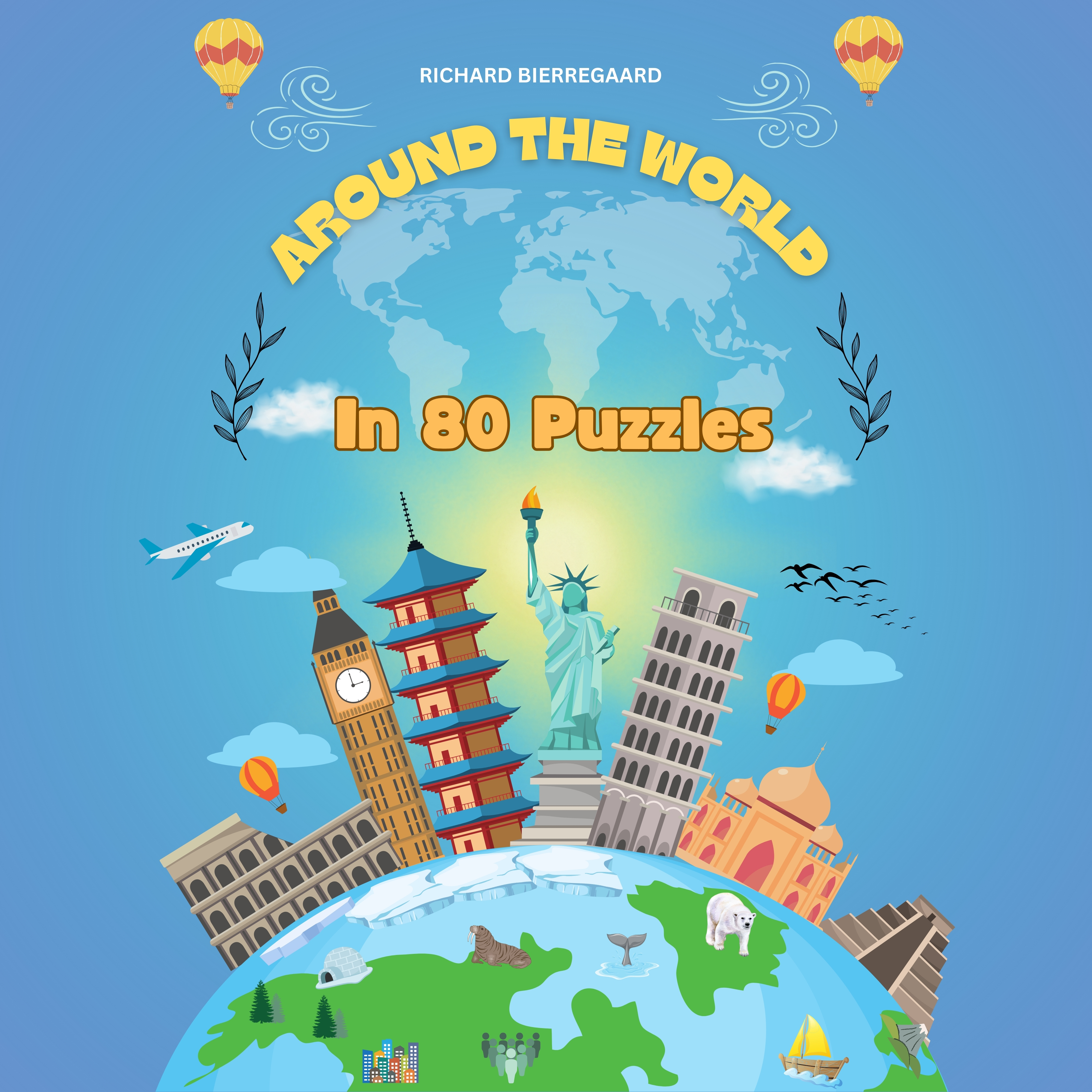
Around the World in 80 Puzzles
A Global Puzzle Adventure
$10.75$6.99
Embark on an exciting virtual journey with 'Around the World in 80 Puzzles'! Explore famous landmarks from every continent while solving creative, brain-teasing puzzles. Perfect for kids and adults alike, this interactive digital challenge will expand your knowledge of languages, delight travelers, and puzzle enthusiasts. Great for developing problem-solving skills while discovering the wonders of the world.
Downloading and Printing Your Ebook PDF
Congratulations on your purchase! Follow these simple steps to download and print your PDF ebook.
Downloading the PDF
Check Your Email: Immediately after your purchase, you should receive a confirmation email from BooksByArgus. If you don't see it in your inbox, please check your spam or junk folder.
Locate the Download Link: The email will contain a section titled "Your download is ready."
" Click the download link provided with the name of the ebook you purchased or the “Download file” button. Note: For security, this link will expire after a set time of 48 hours. If your link has expired, please contact customer support.
Save the File: Clicking the link will initiate the download.
Desktop/Laptop: Your browser will usually prompt you to choose a location to save the file. Select a memorable location, such as your "Downloads" folder or "Desktop."
Mobile Device: The file will typically save directly to your device's default download location.
Verify the Download: Ensure the file has fully downloaded. The file name will end with the extension .pdf.
Printing the Ebook
Open the PDF: Locate the saved .pdf file and double-click it. It should open automatically in your system's default PDF viewer (e.g., Adobe Acrobat Reader, Google Chrome, or Preview on Mac).
Access the Print Dialog:
Go to the "File" menu and select "Print," or
Use the keyboard shortcut Ctrl + P (Windows) or Cmd + P (Mac).
Configure Print Settings: Review the settings in the print dialog box:
Printer: Ensure the correct printer is selected.
Pages to Print: By default, "All" pages will be selected. If you only want to print specific chapters or sections, select "Custom" or "Range" and enter the page numbers (e.g., 10-25, 45).
Page Sizing & Handling (Scale): Choose "Fit" or "Actual Size." "Fit" ensures the content fits entirely on the page, while "Actual Size" prints it true-to-life.
Orientation: Select "Portrait" or "Landscape" based on the document layout.
Double-Sided/Duplex Printing (Optional): To save paper, select the option for printing on both sides of the paper (e.g., "Print on both sides of paper" or "Duplex Printing").
Print: Click the "Print" button to send the document to your printer.